
What is Ventoy?
Ventoy is a free open-source tool that turns any USB drive into a multi-boot device by allowing direct booting of ISO/WIM/IMG files without reformatting the drive each time.
Is Ventoy free to use?
Yes, Ventoy is completely free and open-source under GPLv3 license with no paid tiers or restrictions.
Does Ventoy support UEFI and Secure Boot?
Yes, it fully supports both legacy BIOS and UEFI (including Secure Boot with signed GRUB loader).
What file formats does Ventoy support?
It supports ISO, WIM, IMG, VHD(x), EFI files, and many others directly without extraction.
How do I install Ventoy on a USB?
Download from ventoy.net, run Ventoy2Disk (Windows/Linux/macOS), select your USB drive, and install in seconds.
Can I use Ventoy for Windows installation?
Yes, it boots official Windows ISOs perfectly for clean installs or repairs.
Does Ventoy require internet after installation?
No, it’s fully offline once created; just copy ISOs to the USB and boot.
Is Ventoy safe and reliable?
Yes, it’s widely used by millions, actively maintained, and trusted in IT communities since 2020.

Ventoy

About This AI
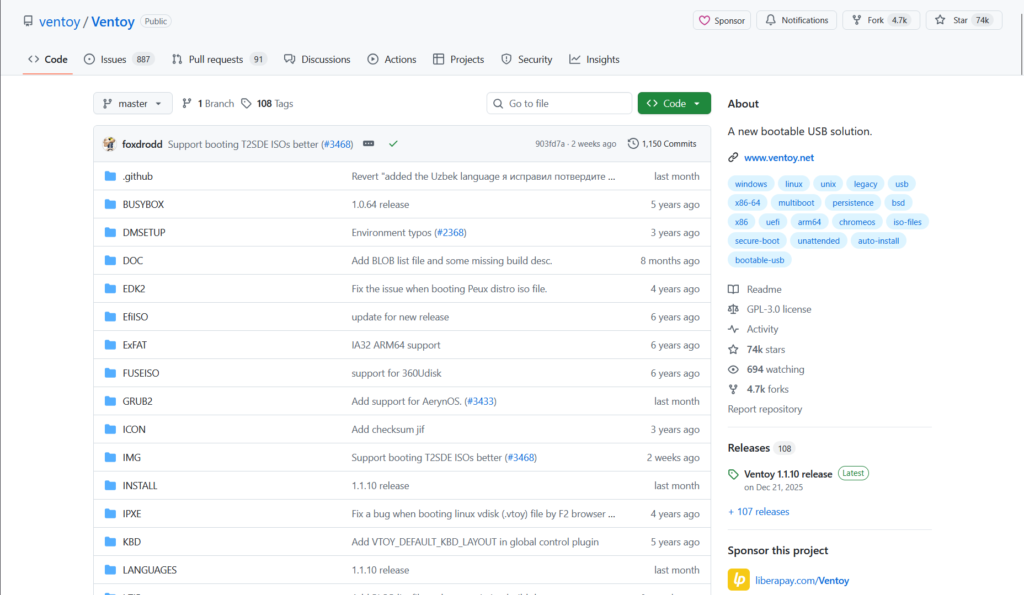
Ventoy is a free open-source tool that allows users to create a bootable USB drive capable of booting multiple ISO files directly without extracting or reformatting the drive each time.
Simply install Ventoy once on any USB drive (supports exFAT, NTFS, UDF, XFS, Ext2/3/4, etc.), then copy ISO, WIM, IMG, VHD(x), EFI files to the drive, and reboot to select and boot any of them from a simple menu.
It supports legacy BIOS, UEFI (both CSM and non-CSM), Secure Boot (with signed GRUB), and most common Linux distributions, Windows ISOs, rescue tools, antivirus boot disks, and virtual machine images.
Key advantages include no ISO modification needed (keeps original files intact), automatic menu generation, support for large drives and files (up to 4TB+), persistence options for some distros, theme customization, and plugin system for advanced behaviors.
Ventoy is portable (no installation required on host PC), cross-platform (Windows, Linux, macOS installers), and actively maintained with frequent updates for new ISOs and compatibility.
With millions of downloads and widespread use in IT, sysadmin, and enthusiast communities, Ventoy eliminates the hassle of repeated Rufus/Etcher formatting, making it the go-to solution for multi-boot USBs, OS testing, recovery, and deployment.
Released in 2020 and continuously updated, it remains completely free under GPLv3 with optional paid support for commercial use cases.
Key Features
- One-time USB installation: Format USB once, then add/remove ISOs freely without reformatting
- Multi-ISO support: Boot dozens of ISOs simultaneously from the same drive
- Automatic boot menu: GRUB-based menu lists all compatible files on the drive
- Legacy BIOS and UEFI support: Works in both modes, including Secure Boot with signed loader
- Wide file format compatibility: ISO, WIM, IMG, VHD(x), EFI, ZIP (extracted), raw disk images
- Theme and plugin system: Customize menu appearance and add advanced behaviors
- Persistence support: For select Linux distros via plugin or casper-rw files
- Cross-platform installers: Official tools for Windows, Linux, macOS to create the bootable drive
- Large drive and file support: Handles 4TB+ drives and files larger than 4GB
- Portable and lightweight: No installation needed on host; runs from USB itself
Price Plans
- Free ($0): Full access to all features, unlimited use, open-source under GPLv3; no paid tiers or restrictions
- Donation/Commercial Support (Optional): Community donations encouraged; some users offer paid customization/help (not official)
Pros
- Extremely convenient: Copy ISOs to USB like regular files; no burning tools needed repeatedly
- Highly compatible: Works with virtually all major OS ISOs, rescue tools, and live CDs
- Completely free and open-source: GPLv3 licensed with no hidden costs or ads
- Active development: Frequent updates add support for new ISOs and fix issues quickly
- Secure Boot ready: Signed GRUB loader enables booting on modern locked-down systems
- Community favorite: Widely recommended in IT forums for multi-boot and recovery USBs
- No data loss risk: Original ISOs remain untouched; drive stays usable for storage too
Cons
- No built-in ISO downloader: Users must source ISOs themselves
- Learning curve for advanced features: Plugins, themes, persistence require configuration
- Occasional compatibility quirks: Some rare or very old ISOs may not boot perfectly
- USB drive quality matters: Slow or fake drives can cause boot failures
- Menu can get cluttered: With many files, manual organization or plugins needed
- No GUI for configuration: Most advanced setup done via text files
- Limited official support: Community-driven; no enterprise-level paid help
Use Cases
- Multi-OS testing: Keep Windows, Linux distros, BSD on one USB for quick booting
- System recovery: Carry Hiren's BootCD, Ultimate Boot CD, antivirus rescue disks
- IT technician toolkit: Portable drive for diagnosing and repairing client PCs
- OS installation: Boot fresh Windows/Linux installs without burning DVDs
- Live environment experimentation: Try new distros or betas without installing
- Secure boot setups: Test UEFI/Secure Boot compatibility across hardware
- Education and training: Distribute multiple bootable tools for classes or labs
Target Audience
- IT professionals and technicians: Needing a single USB for diagnostics and installs
- Linux enthusiasts: Testing multiple distros and live environments
- System administrators: Maintaining recovery and deployment tools
- PC builders and hobbyists: Experimenting with OSes and troubleshooting
- Security researchers: Running malware analysis or forensic tools from USB
- Students and educators: Learning OS concepts with bootable environments
How To Use
- Download Ventoy: Get latest release from ventoy.net or GitHub
- Prepare USB: Use a USB drive (at least 8GB recommended)
- Install Ventoy: Run Ventoy2Disk.exe (Windows) or Ventoy2Disk.sh (Linux/macOS) and select drive
- Copy ISOs: Drag and drop ISO/WIM/IMG files to the Ventoy partition
- Boot from USB: Restart PC, enter BIOS/boot menu, select USB
- Select ISO: Use Ventoy menu (arrow keys/Enter) to choose and boot file
- Customize (optional): Edit ventoy/ventoy.json for themes, plugins, or persistence
How we rated Ventoy
- Performance: 4.9/5
- Accuracy: 4.8/5
- Features: 4.7/5
- Cost-Efficiency: 5.0/5
- Ease of Use: 4.6/5
- Customization: 4.5/5
- Data Privacy: 5.0/5
- Support: 4.4/5
- Integration: 4.7/5
- Overall Score: 4.8/5
Ventoy integration with other tools
- Any USB Drive: Works with virtually all USB flash drives formatted in supported filesystems
- BIOS/UEFI Firmware: Native support for legacy BIOS and modern UEFI systems
- ISO File Sources: Compatible with official downloads from Microsoft, Ubuntu, Fedora, etc.
- Third-Party Tools: Often used alongside Rufus (for initial formatting) or balenaEtcher
- Custom Scripts/Plugins: Ventoy plugins system allows integration with external boot configs
Best prompts optimised for Ventoy
- Not applicable - Ventoy is a bootable USB creation tool, not a prompt-based generative AI. It works by copying ISO files directly to the drive; no text prompts are used for functionality.
- N/A - This tool is utility software for managing bootable media; no prompting interface exists.
- N/A - Focus is on file copying and boot menu selection rather than AI generation from prompts.
FAQs
Newly Added Tools




About Author